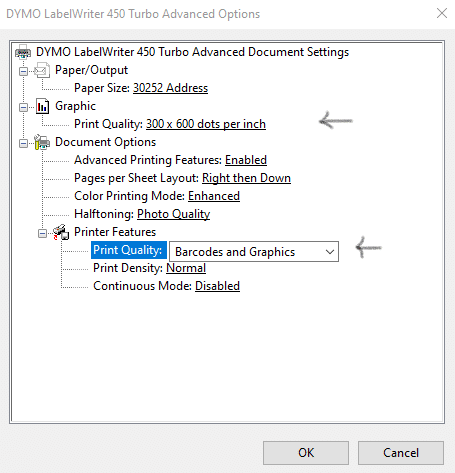
DYMO 450 Series Printer Settings


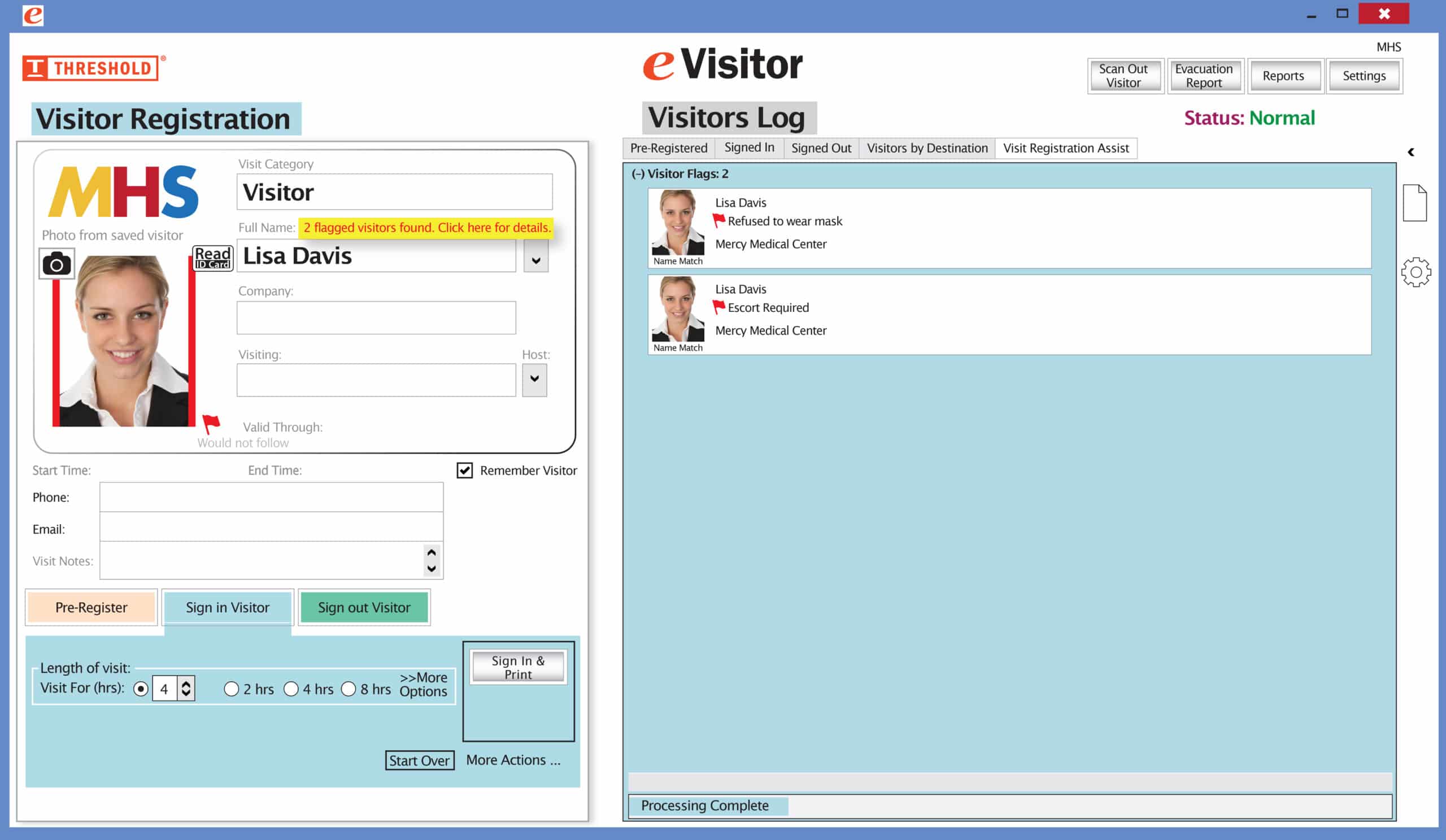 It’s easy and free to activate this feature. Simply call us and ask for “Red Flag, No Badge” to be turned on. Once it’s on, the above pop-up will come up when a red flagged visitor comes back. No badge will print and the attendant will need to follow the facility’s policy for handling red flagged visitors.
The flags and notes only show to the desk attendant, not the visitor.
Please contact eVisitor Support with any questions on how to use Flags in your system.