
Threshold will be closed on Monday, October 13th. We will reopen on Tuesday, October 14th. 

How It Works

MediTape Reports are color-coded, self-adhesive “forms-on-a-label” that affix to patient charts and make medical documentation quick and easy. They come on a perforated backing that transfers recorded information onto a duplicate log underneath.

Here’s how MediTape Reports give you complete patient documentation records in 4 easy steps:

how MediTape Reports work

Fill in the Report.

Complete both the Report and the duplicate Record in one writing. No transcription errors!

how MediTape Reports work

Tear at perforation.

Remove the Report along the perforation and send it to the physician or filing location.

how MediTape Reports work

Affix in chart.

Peel the self-adhesive Report off its backing and affix it into the patient's chart - permanently.

how MediTape Reports work

Keep duplicate record.

Keep an identical log in the MediTape binder for a complete and accurate record.

[searchwp_form id=2]

Get 20% of your 1st order and stay connected to industry news!

Receive product news, industry trends, & offers via email.

Get 20% OFF your 1st order for signing up! (new customers only)*

*The discount code from this offer can not be used with other offers.

You can unsubscribe at any time.

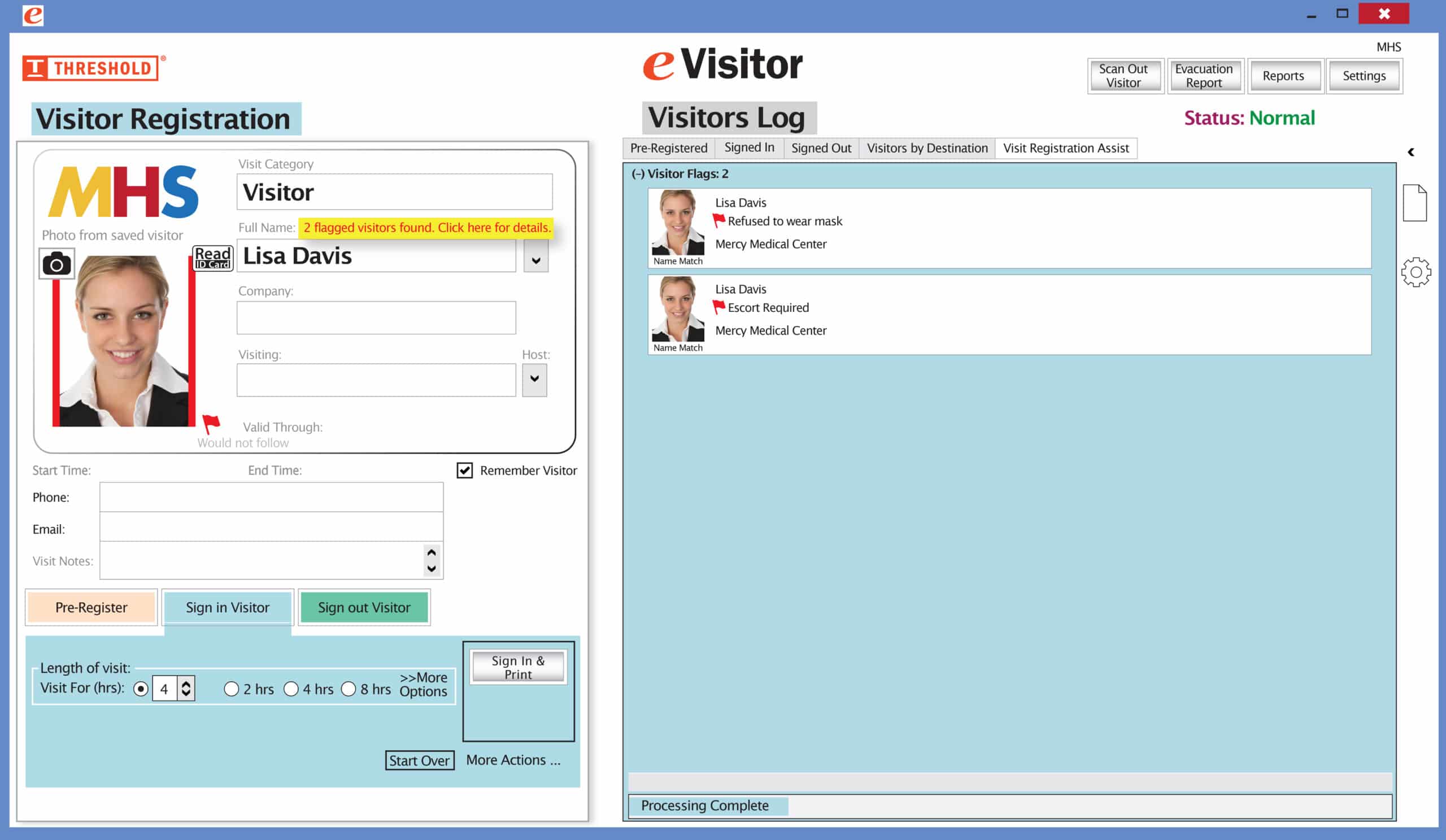
    The Red Flag feature has been improved! Now you can set your system to not print a badge for any visitor record that has been previously marked with a Red Flag. The attendant will be prompted to redirect the visitor according to your security protocol.

    Special New Feature: Red Flag, No Badge

    Flag alerts It’s easy and free to activate this feature. Simply call us and ask for “Red Flag, No Badge” to be turned on. Once it’s on, the above pop-up will come up when a red flagged visitor comes back. No badge will print and the attendant will need to follow the facility’s policy for handling red flagged visitors.

    The flags and notes only show to the desk attendant, not the visitor. 

    Please contact eVisitor Support with any questions on how to use Flags in your system. 

    If you have seen a special offer in our advertising, mailings, or emails, this is the area to enter the Promo Code to receive that offer. After you’ve entered the Promo Code, click “Update cart” for the code to take effect. If you have any questions, please call 1-800-243-1969.